

Plan the week. Send it to your crews. Get paid Friday.
crewster.pro runs the week for small businesses with several crews and trucks in the field: recurring jobs, crew routes and weekly invoices.
How it works
Step 1 of 5 · Set up once, plan each day
Plan the work
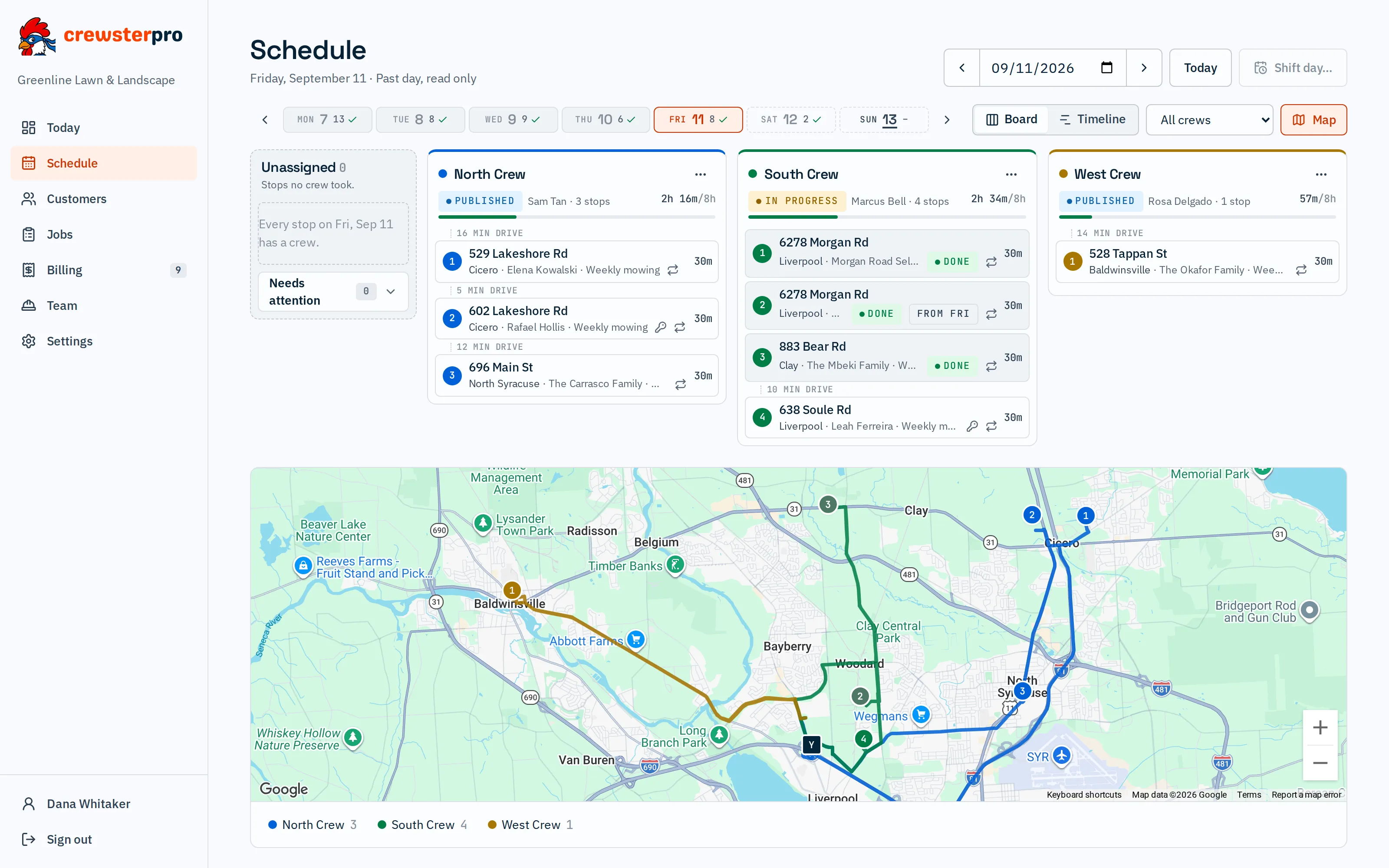
Enter your customers and the work you do for them, like weekly mowing on Tuesdays. Visits land on the calendar 8 weeks ahead. Each crew’s day is a column: drag stops between trucks, tap Optimize order, and watch the capacity meter.
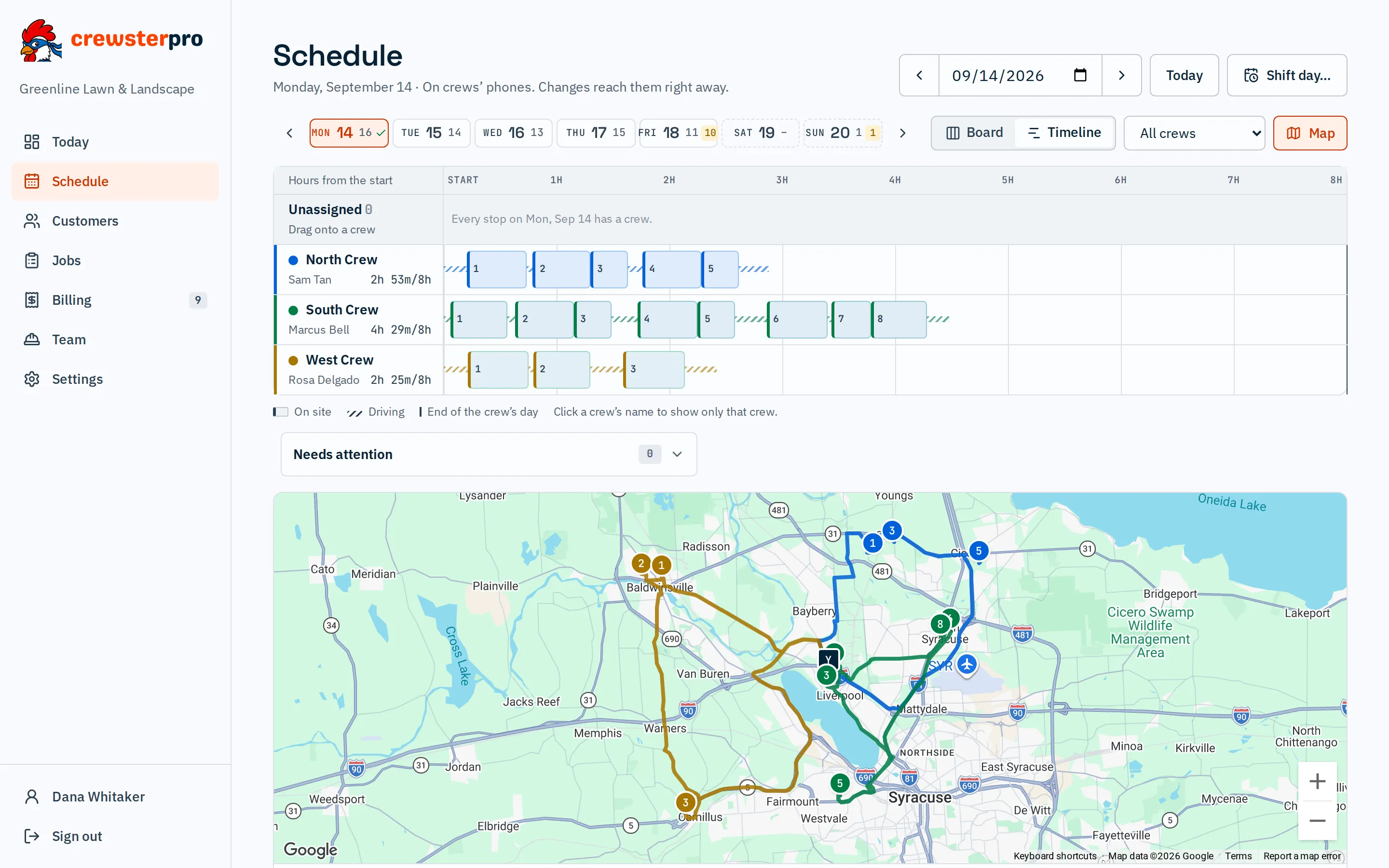
The timeline: crews as rows, with on-site time and driving laid out across the day.
Recurring jobs
Set up weekly, every-2-weeks, monthly or one-time jobs. Visits appear on the calendar automatically, kept 8 weeks ahead. Pause, resume or end a job when the work changes.
One timeEvery weekEvery 2 weeksEvery month
The Schedule board
One column per crew, plus Unassigned. Drag stops between crews, reorder them, or drop them on another day. Switch to the timeline, the week strip or the map.
Optimize order
One tap re-orders a crew’s stops for the shortest drive, using Google’s routing. Handles up to 25 stops. Every route starts and ends at your yard.
The timeline
Crews as rows and the day as blocks of on-site time and driving, with a line where each crew’s day ends.
Capacity meter
Each crew shows booked time against its workday, drive time included. Overbooked days get flagged in Needs attention.
2h 53m / 8h
Just this visit, or every visit
Moving a repeating visit to another crew? Choose whether to change only that visit or the job’s usual crew from now on.
Needs attention
Overdue, skipped, held back, no usual crew, over a full day. One list, with a badge in the navigation.
Rain days
Shift day… pushes one day, or the rest of the week, back a day. For every crew or just one. Pick where overflow goes, check the preview, and undo if plans change.
Step 2 of 5 · The day before, 6 PM
Send it to crews
At 6 PM tomorrow’s routes go to the crews’ phones on their own, or tap Send to phones when the day is ready. Change a route later and the phone shows “Route changed” within about 90 seconds.
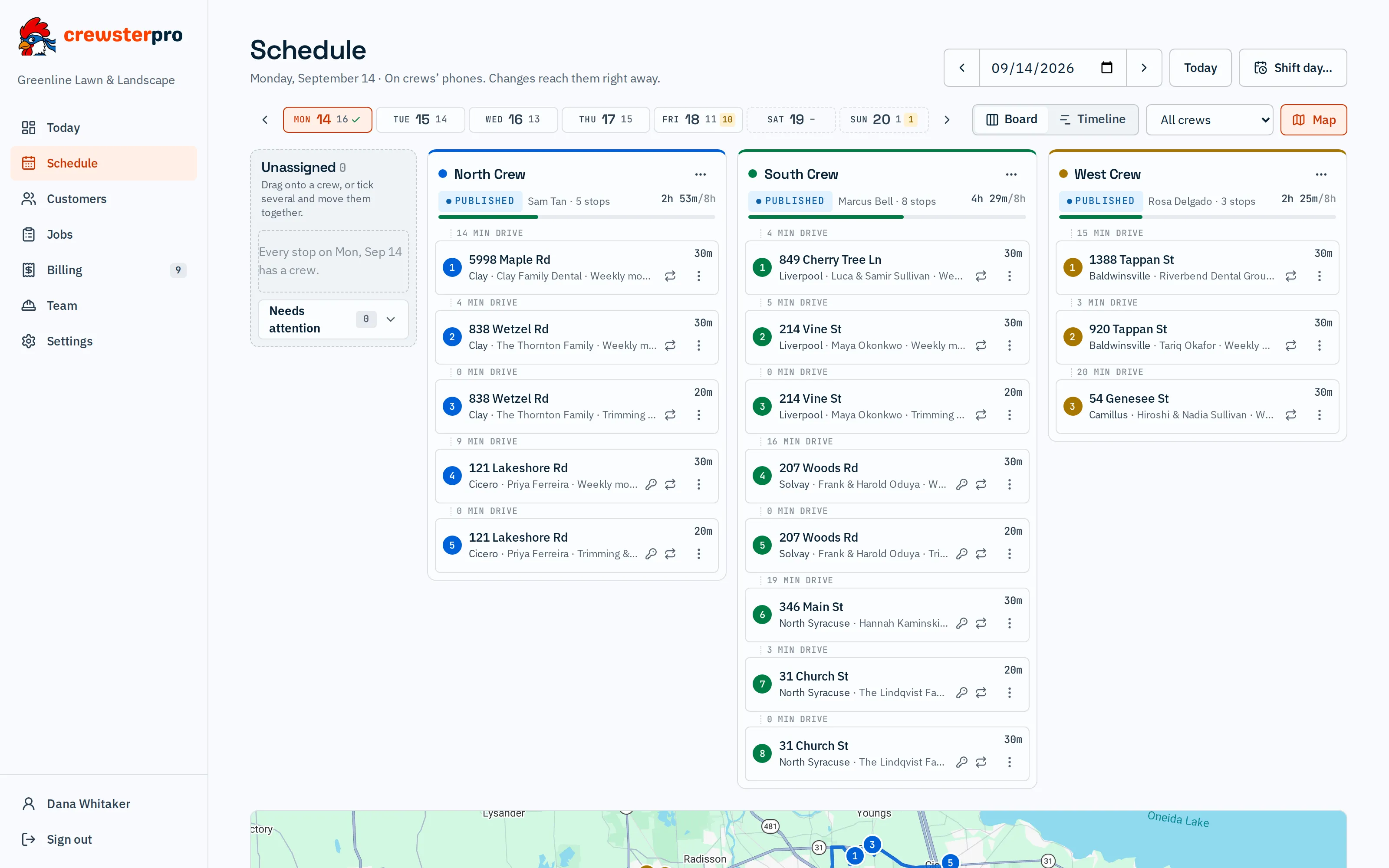
A day on crews’ phones: every route published, and changes reach them right away.
Send to phones
Tomorrow’s routes go to crews’ phones on their own the evening before, at 6 PM by default. Or tap Send to phones when the day is ready.
Where each day stands
The Schedule says it plainly: “Draft. Send it to phones when it’s ready.”, “Goes to crews’ phones at 6:00 PM tonight.” or “On crews’ phones. Changes reach them right away.”
Route changed
Change a route during the day and the crew’s phone shows “Route changed” within about 90 seconds, with the new order.
Texts and push notifications
crewster.pro can text your crews and your customers, and the app sends push notifications between crews and the owner.
Today’s routes stay live
Edits to today’s routes go straight to the crews. Tomorrow’s go out with the evening send.
Off for this day
A crew out for the day? Off for this day moves its stops back to Unassigned, ready to hand out.
Step 3 of 5 · On the day
Work the stops
The crew lead opens the app and sees the stops in order. Navigate for directions, Done when finished, a photo for the customer. Or Can’t do this stop, with a reason.
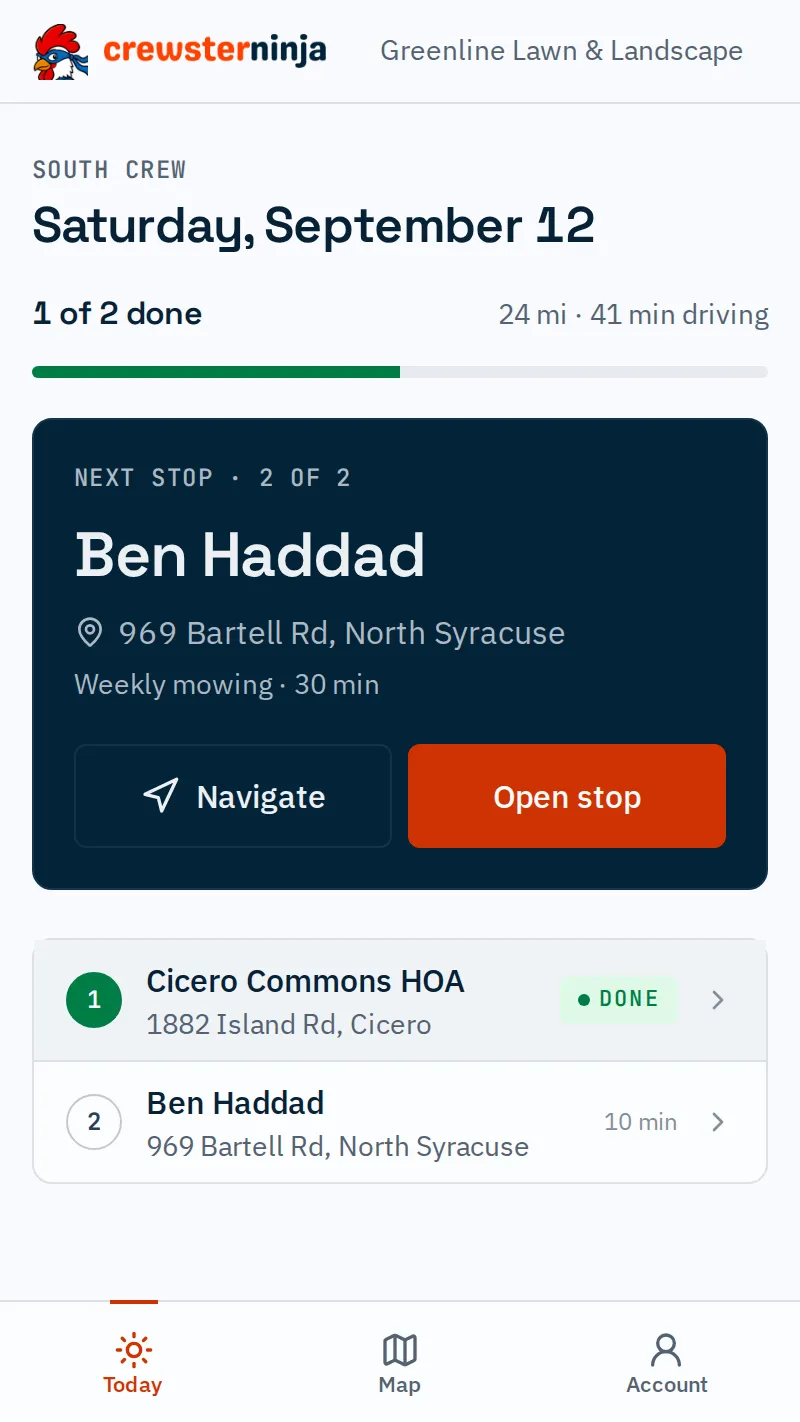
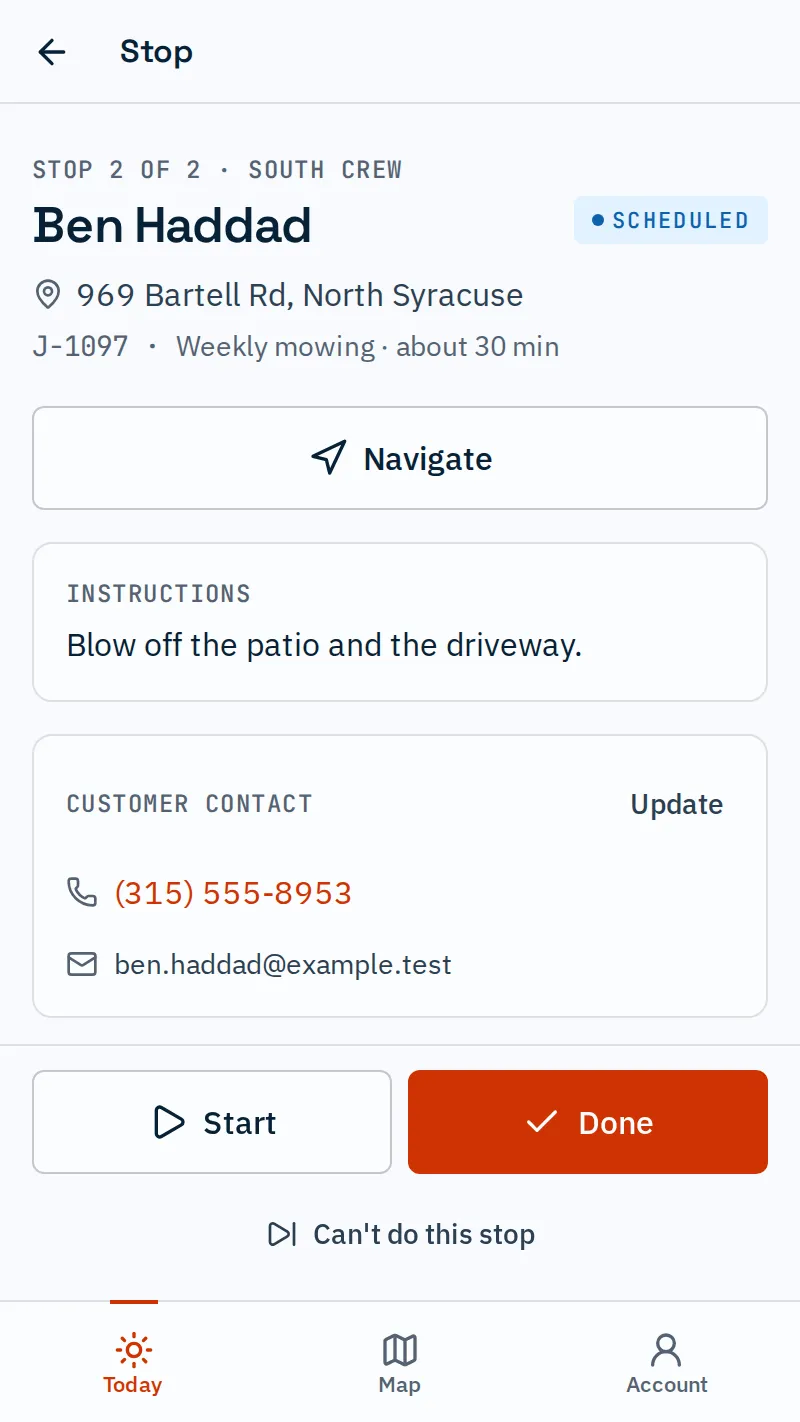
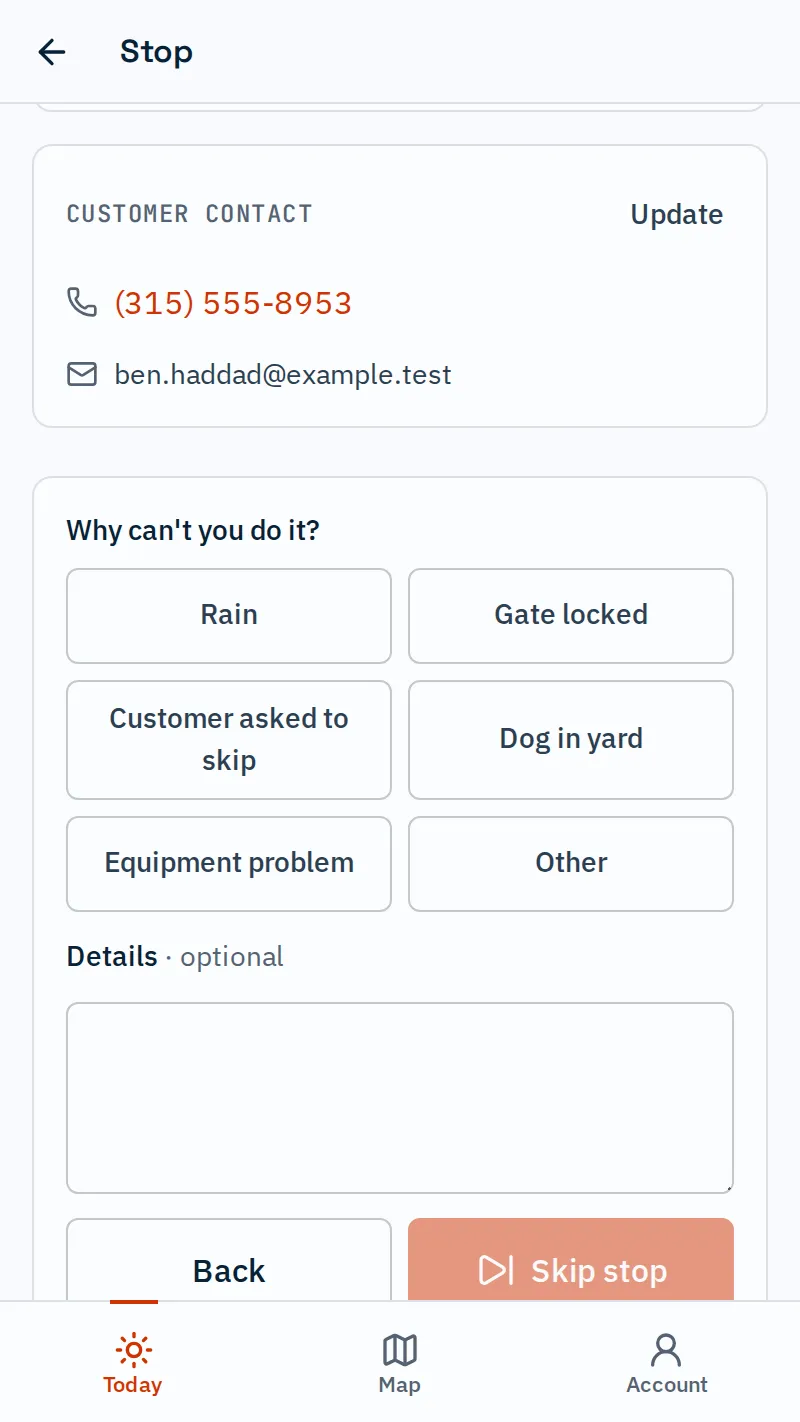
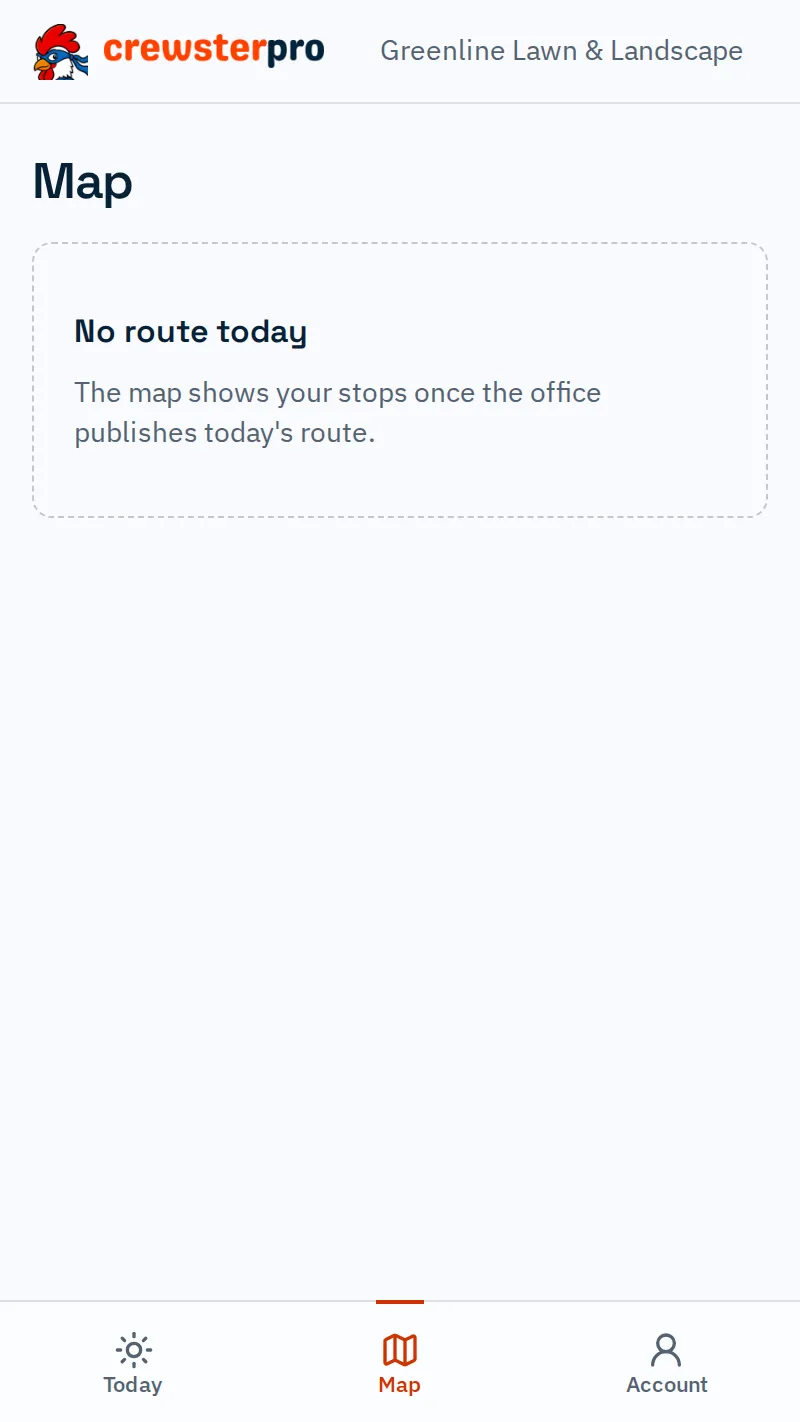
The crew lead’s Today screen: progress, the next stop and the stop list.
Stops in order
A Next stop card, miles and driving time, and progress like “3 of 12 done”.
Route on the phone
The app downloads the day’s route and stop details, so crews have their stops, addresses and notes even where signal is weak.
Everything at the stop
The address, about how long it takes, gate codes and dogs, the job’s instructions, and the customer’s number, one tap to call. Navigate opens Apple Maps, Google Maps or Waze.
Done, or Can’t do this stop
Start, then Done, with Undo if a tap was a mistake. Or Can’t do this stop, with a reason the office sees.
RainGate lockedCustomer asked to skipDog in yardEquipment problemOther
Crew map
The Map tab shows the day’s route with numbered pins, and crosses out stops as they’re done.
Photos
Take a photo or pick one from the library. Up to 30 per stop, with location data removed and Retry if the signal drops. Share each one with the customer or keep it Office only.
Crew members
Crew members see the route but can’t complete stops. The crew lead marks stops done.
Step 4 of 5 · Friday, 7 PM
Get paid
Every finished visit is priced and collects in this week’s batch. Friday evening, each customer gets one invoice by email with the PDF attached, without you lifting a finger.
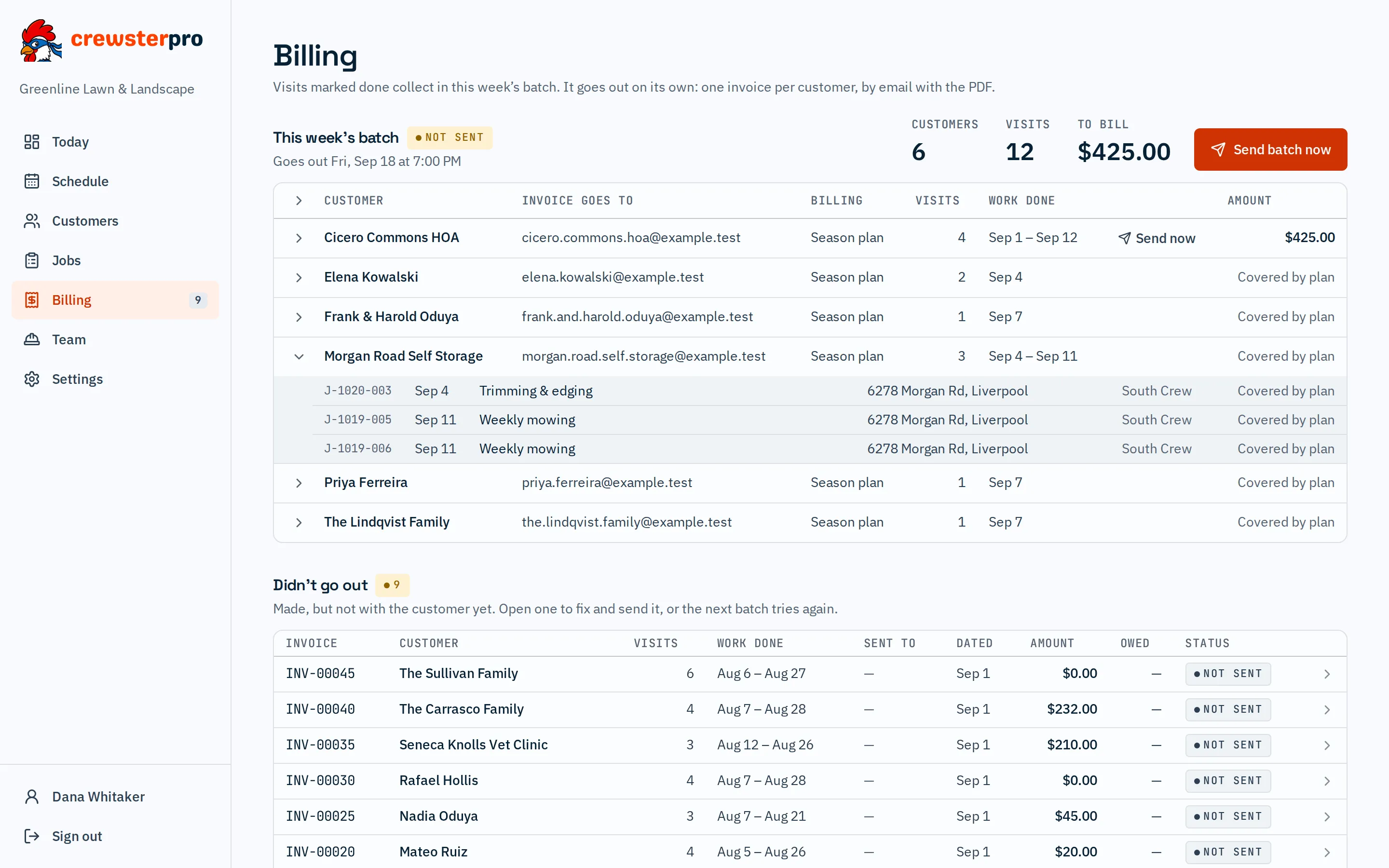
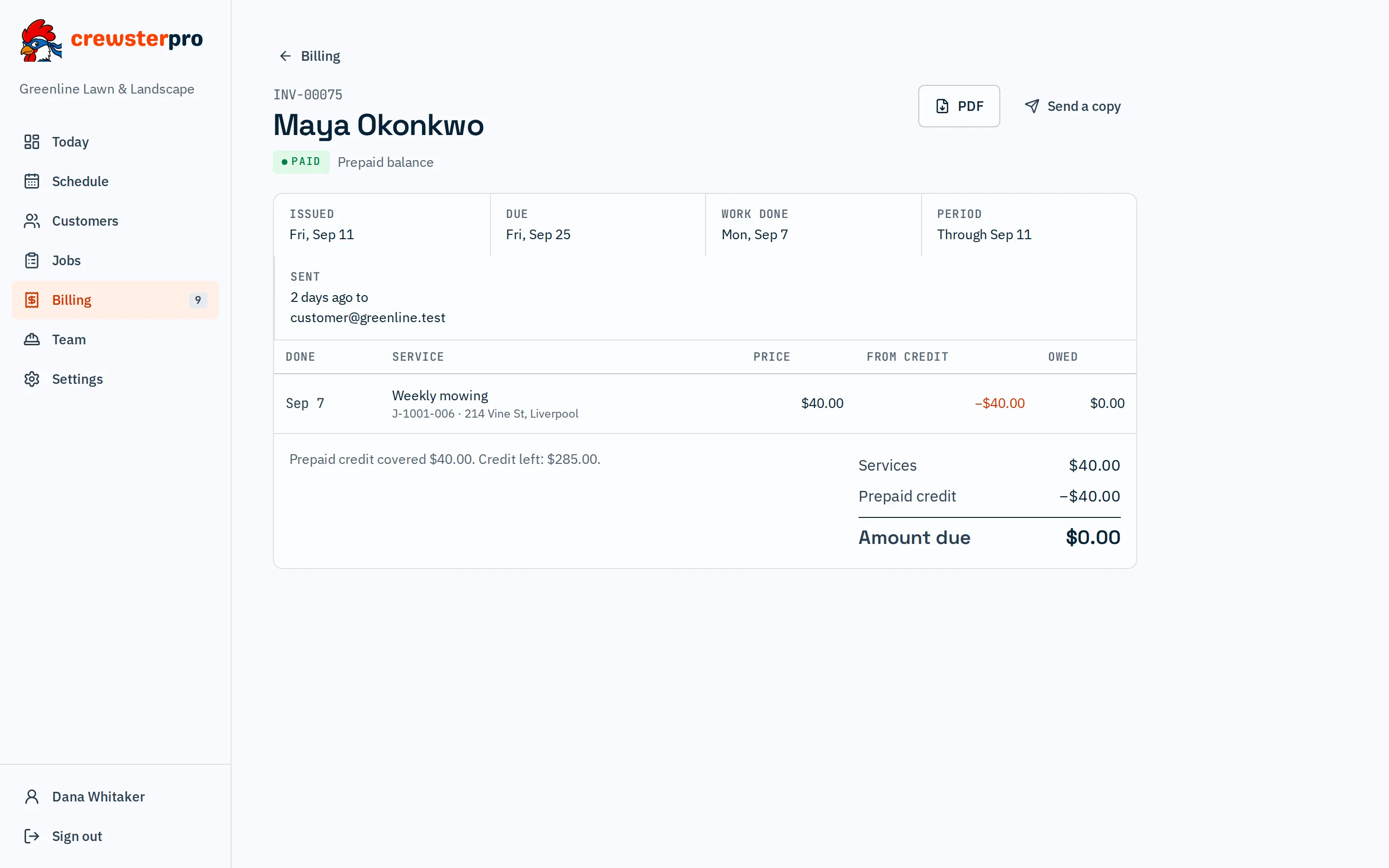
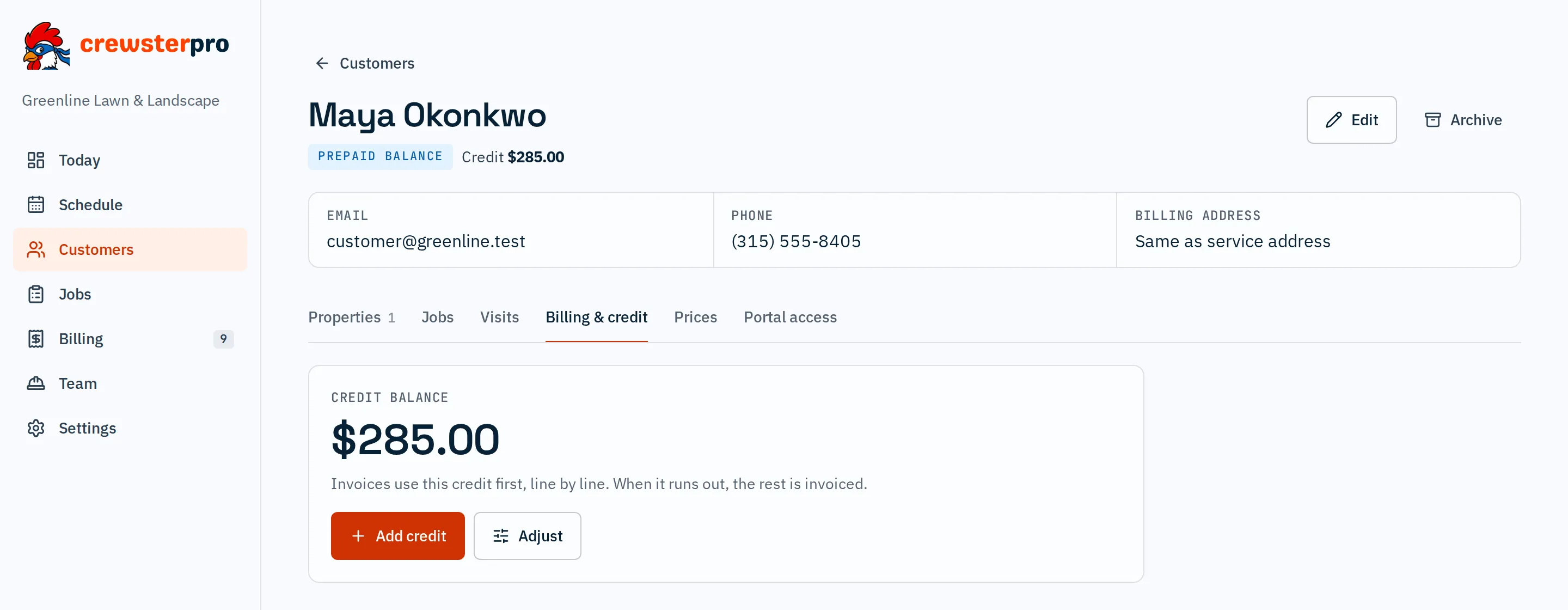
This week’s batch: one row per customer, each opening to its visits and prices.
This week’s batch
Every finished visit joins this week’s batch at its price. Skipped visits are never billed. Adjust a price in the batch before it goes out.
One invoice per customer
On your day and time, Friday 7 PM by default, each customer gets one invoice by email with the PDF attached. One line per visit, with its date, service, job number and address.
INV-00001J-1042-003
Three ways to bill
Pay as you go: each finished visit is invoiced. Prepaid balance: customers pay ahead and each visit comes out of the balance. Season plan: one flat price covers the services you pick.
Prices that follow your rules
A standard price per service, a customer’s own price, or a job’s price per visit. The price freezes when the visit is marked done.
Record payments
Check, cash, card, bank transfer or other, with a reference number. Partial payments are fine. The invoice turns Paid at zero balance.
Didn’t go out
Invoices that couldn’t be delivered, say for a customer with no email address, are listed with the reason and retried with the next batch.
Step 5 of 5 · All week
Customers and the office
Customers log in to see what was done, the crew’s photos and notes, and what they owe. The office follows the whole day from the Today dashboard.
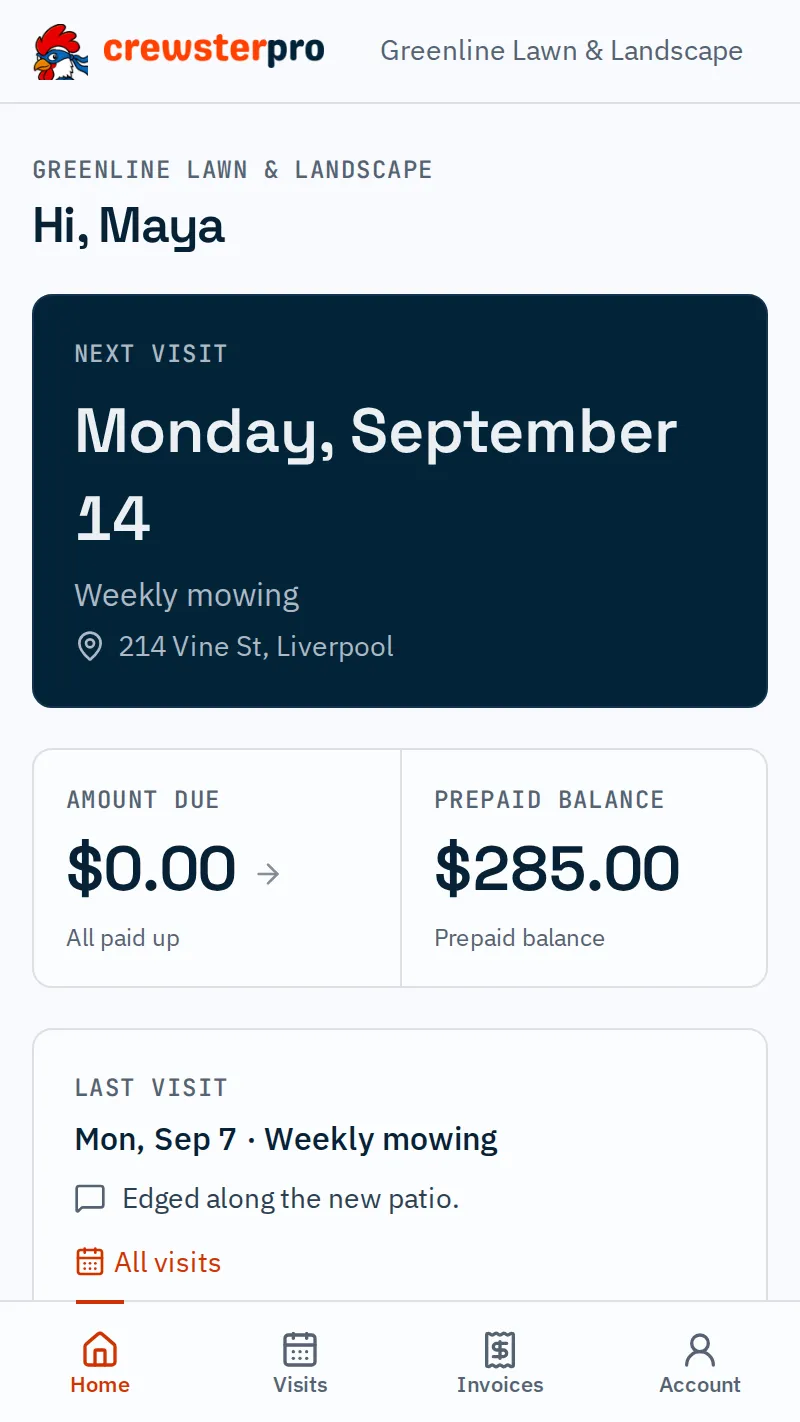
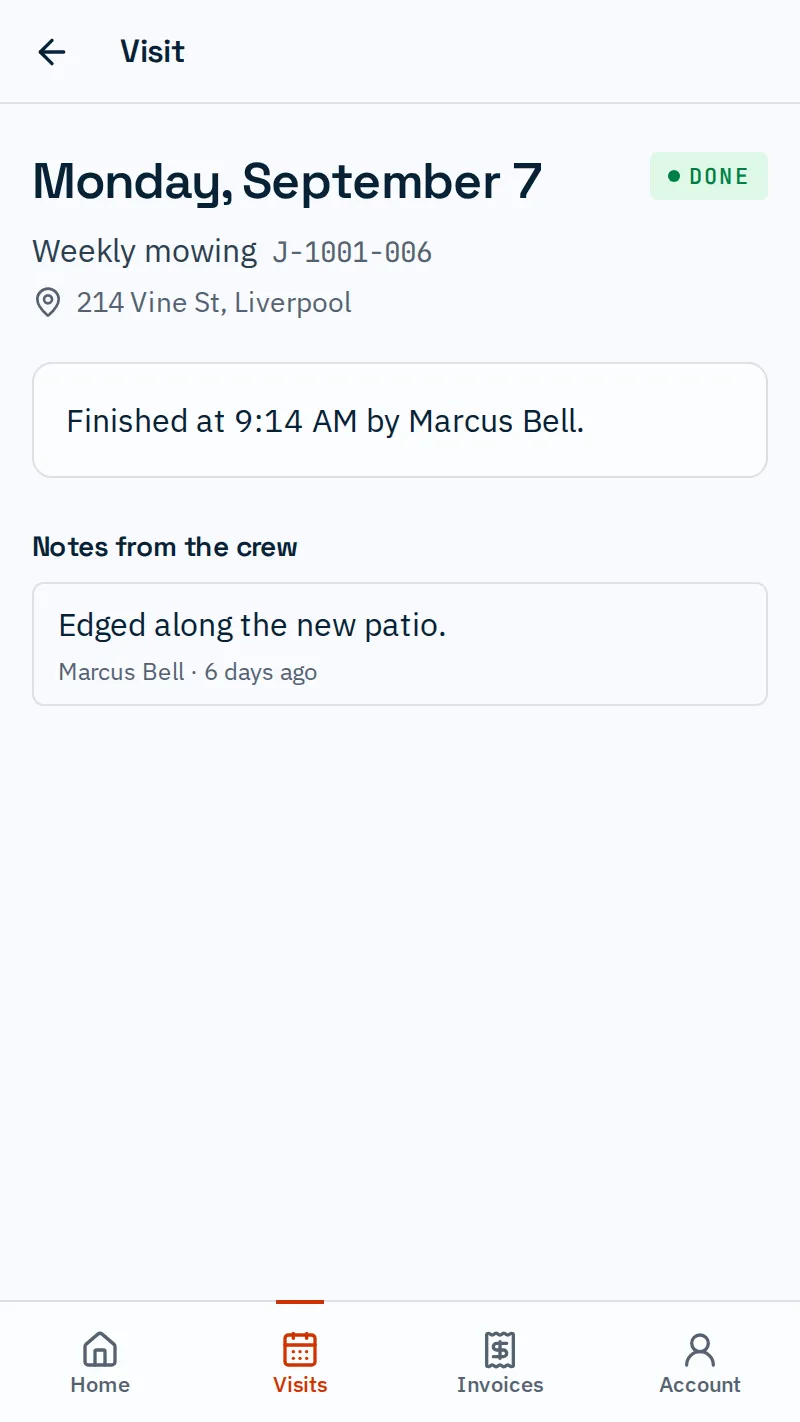
The customer portal: next visit, amount due, prepaid balance and the last visit’s crew note.
Customer portal
Customers see upcoming and finished visits, invoices with PDFs, and their prepaid balance.
Photos and notes from the crew
Finished visits show when the work was done and by whom, plus the photos and notes shared with the customer.
Today dashboard
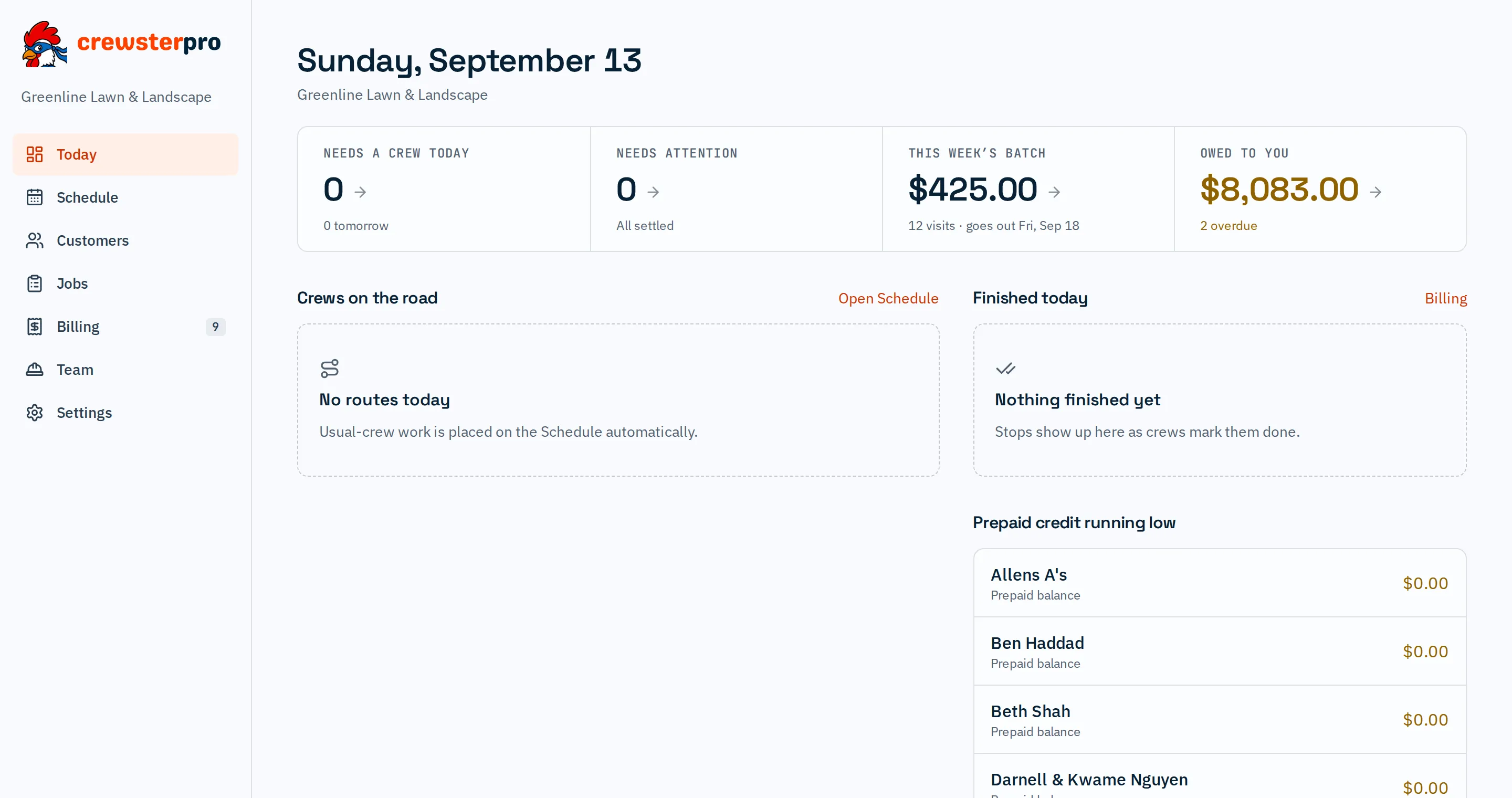
Four tiles: Needs a crew today, Needs attention, This week’s batch and Owed to you. Below them, each crew on the road with a done/total progress bar.
Crews and team
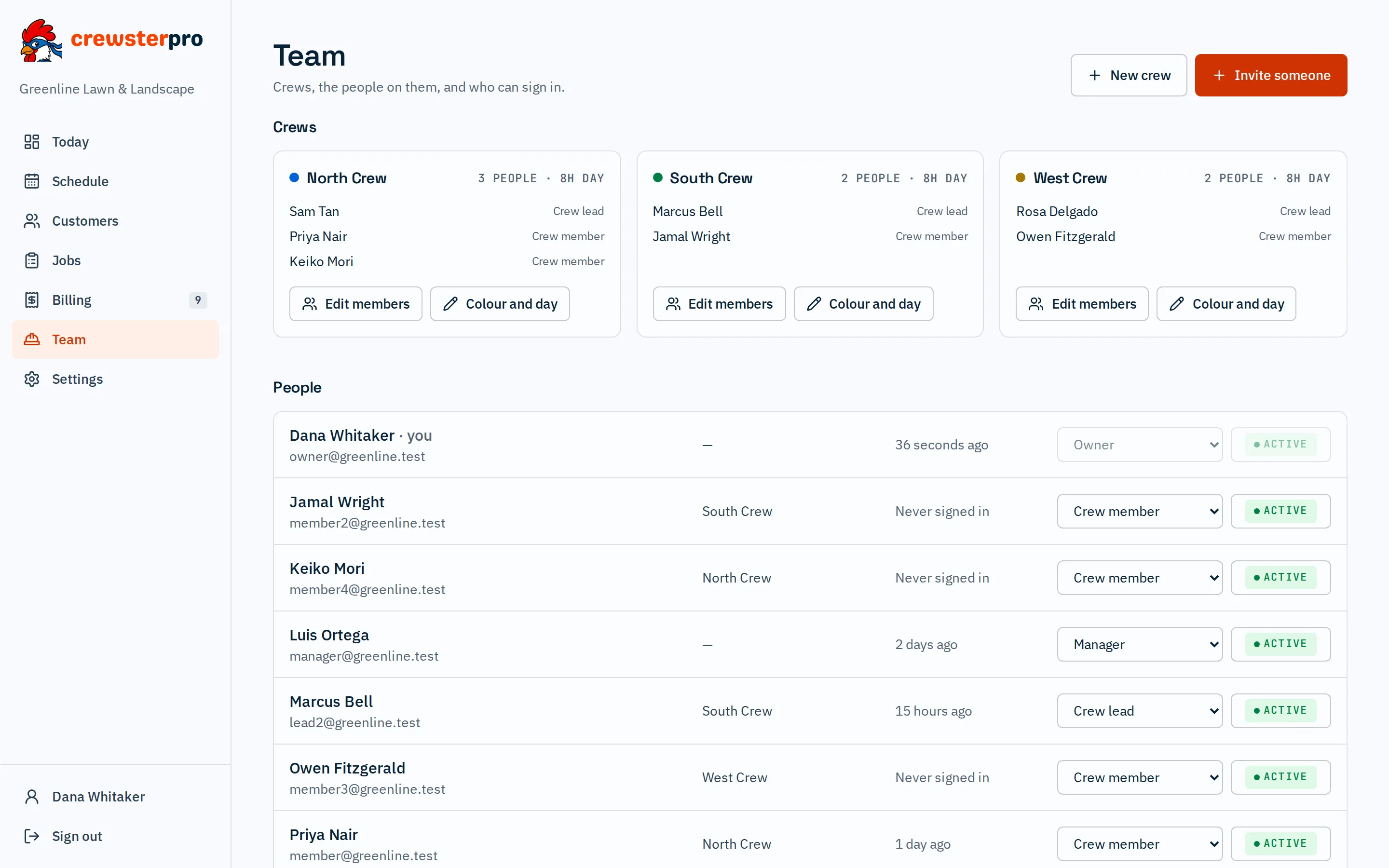
Each crew has a name, a colour and its work-day hours, which drive the capacity meter. Invite people by email, set their role and crew, and switch an account off when someone moves on.
Invite to portal
Invite a customer from their record. They sign in with an emailed link or a password.
Roles that fit a crew company
Owner, Manager, Crew lead, Crew member and Customer. Each person sees what their job needs.
Phone first, desktop too
Owners and crews can run nearly everything from their phones, and owners can also manage the whole week from a desktop. It installs to the home screen like an app.
Your data, walled off
Each company’s data is kept separate from every other company’s.
One week, three views
The office plans it, the crews work it, the customers see it. Same visits, same day.
- OfficeSchedule, dashboard, billing
- The Schedule board with a column per crew, a capacity meter on each, and Optimize order. The Today dashboard shows crews on the road and what’s owed to you.
- Crew leadThe phone app
- Stops in order. Navigate in Apple Maps, Google Maps or Waze. Done, or Can’t do this stop. Photos for the customer.
- CustomerThe customer portal
- Upcoming and finished visits, the crew’s photos and notes, invoices with PDFs, and their prepaid balance.
Rain day? Shift it.
Shift day… pushes a day, or the rest of the week, back one day. For every crew or just one. You pick where the overflow goes, see a preview first, and can undo it.
Shift day…Rest of the weekUndo
Three ways to bill
- Pay as you goEach finished visit is priced and invoiced.
- Prepaid balanceThey pay ahead and each visit comes out of the balance.
- Season planOne flat price covers the services you pick for the season.
One invoice per customer each week, Friday 7 PM by default.
Straight answers
Common questions, answered plainly, so you know before you sign up.
Does it send text messages?
Yes. crewster.pro can text your crews and your customers, and the app sends push notifications between crews and the owner. Invoices, invitations and sign-in links go by email.
Is there an iPhone or Android app?
Yes. It runs on any iPhone or Android phone and installs to the home screen like an app. Owners and crews can run nearly everything from their phones, and owners can also manage the whole week from a desktop.
Does it work without signal?
The app downloads the day’s route and stop details to the phone, so crews have their stops, addresses and notes even where signal is weak.
Does it work with QuickBooks?
Yes. QuickBooks Online sync comes with the Advanced plan. Customers, service types and invoices go to QuickBooks, and payments recorded there show up here automatically. For US QuickBooks companies.
Can customer emails come from my own domain?
Yes. On the Advanced plan, notifications to your customers go out from your own email domain.
Does it track time or trucks?
Clock-in and GPS tracking are coming in a future version. Today, each stop’s start and finish time is recorded, and the office sees progress as stops are done.
How are a crew’s stops ordered?
In the best driving order. Optimize order uses Google’s routing to put up to 25 stops in the shortest drive, starting and ending at your yard.
From $49/mo, billed yearly.
QuickBooks Online sync comes with the Advanced plan.